
Torchlight: Infinite Mac Guide: Downloads and Setup
Explore Torchlight: Infinite Mac options, understand Steam compatibility, and follow the emulator setup steps before starting your next seasonal loot hunt.
Jump to
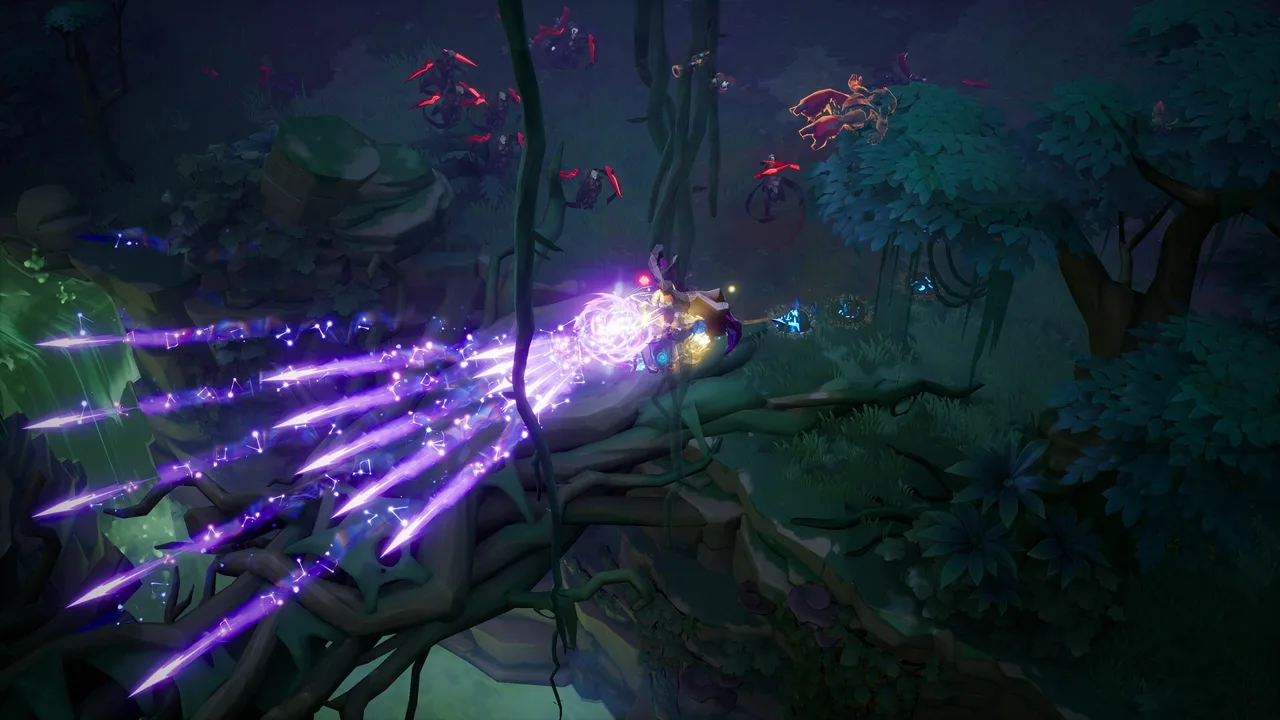
Can You Play Torchlight: Infinite on Mac?
Your next loot hunt starts with choosing the right Torchlight: Infinite Mac installation route. Steam’s version supports Windows, so installing Steam on your Mac does not give you a native macOS client. The Torchlight: Infinite Mac alternative covered here is BlueStacks, which runs the Android game through an emulator.
That distinction matters before you download anything. The Windows desktop client and the Android game use different installation paths, and their hardware requirements belong to different setups.
| Installation route | Platform support | What it means for Mac players |
|---|---|---|
| Steam game client | Windows; no macOS support | The Steam release does not run natively on macOS |
| BlueStacks emulator | Advertises PC and Mac play | Install the Android game inside a compatible emulator release |
| Official website | Provides a PC download | Check the download’s platform before installing |
For Torchlight: Infinite Mac setup, check your computer’s compatibility with the BlueStacks release you intend to install. Keep the emulator requirements separate from the Windows game requirements throughout the process.
You can visit the official Torchlight: Infinite website for game downloads and seasonal news. If you also play on a Windows computer, the Torchlight: Infinite Steam page provides that desktop installation route.
How to Download Torchlight: Infinite on Mac
The emulator setup follows a straightforward sequence: install BlueStacks, access Google Play, and install Torchlight: Infinite inside the emulator. Start with a BlueStacks release compatible with your Mac’s hardware and operating system.
 Image: Steam / XD
| Step | Action |
|---|---|
| Install the emulator | Download and install BlueStacks on your compatible Mac |
| Access Google Play | Complete Google sign-in to use the Play Store |
| Find the game | Search for Torchlight: Infinite inside BlueStacks |
| Install Torchlight: Infinite | Select the game from the search results and install it |
| Finish sign-in if necessary | Complete Google sign-in if you skipped it earlier |
| Launch the game | Select the Torchlight: Infinite icon on the emulator’s home screen |
Keep the installation paths straight
Install the game through the Play Store inside BlueStacks. Downloading the Windows desktop installer adds a different application to the process and does not replace the Android installation.
The emulator’s home screen is also where you launch the installed Android game afterward. Keep that separate from your Steam library when organizing shortcuts or troubleshooting startup problems.
Google sign-in is part of accessing the Play Store. Use it for the installation step, and follow the game’s own account prompts once Torchlight: Infinite opens. Keep track of which account you use at each stage so you can identify whether a problem belongs to the store, the emulator, or the game.
Check each stage before moving on
Open BlueStacks successfully before trying to install Torchlight: Infinite. Then complete Play Store access before searching for the game. Working through those stages separately makes a failed installation easier to diagnose.
If the game does not appear in your search results, check the spelling and your Play Store account before starting over. Reinstalling the emulator immediately adds work without helping you identify which step needs attention.
Torchlight: Infinite Mac Requirements Explained
The emulator route has its own baseline requirements. For a Torchlight: Infinite Mac installation through BlueStacks, plan around macOS compatibility, available memory, and free storage.
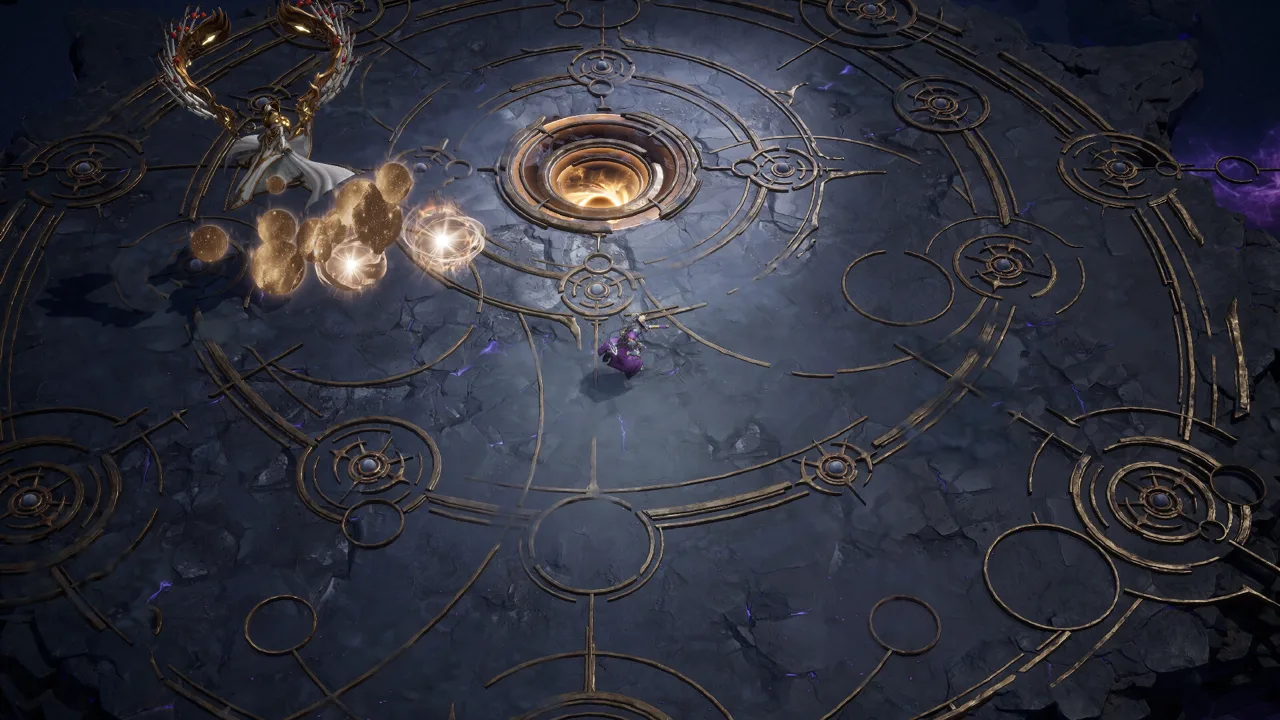 Image: Steam / XD
| Component | Emulator baseline |
|---|---|
| Operating system | macOS 11 Big Sur or later |
| Memory | At least 4 GB RAM |
| Free storage | 10 GB |
| Processor compatibility | Check your Mac’s processor against the selected BlueStacks release |
Check the exact emulator release before downloading, especially when choosing software for an Intel or Apple silicon Mac. Use your Mac’s actual specifications rather than assuming every emulator package supports every processor.
RAM and storage serve different jobs
The 4 GB memory figure refers to RAM. Freeing 4 GB of disk space does not increase your computer’s memory.
Storage is where the emulator and downloaded game files live. Check available space before installation, and leave room for additional downloads instead of filling the drive to its limit. Closing unnecessary applications is also a practical preparation step when your Mac has limited memory.
Minimum requirements describe an entry point. They are not a frame-rate target, and they do not tell you how a particular combat encounter will perform on your computer.
Windows requirements belong to the desktop client
The Steam version has a separate minimum specification: 8 GB RAM, an Intel Core i5 2500 or AMD FX-4350, and a graphics card such as the Nvidia GTX 660Ti or AMD R9 270 with at least 2 GB VRAM. Its minimum storage requirement is 10 GB, and an SSD is strongly recommended.
Those specifications apply to the Windows desktop version. Use the emulator requirements when preparing your Mac, and use the Windows requirements when evaluating a Windows PC.
Keep the desktop game’s graphics-card requirements separate from your Mac emulator compatibility checklist.
Set Up Controls and Check Performance
Once your Torchlight: Infinite Mac installation launches, spend time checking input and responsiveness before settling into a long farming session. Fast combat, skill effects, and frequent loot drops make comfortable controls especially valuable.
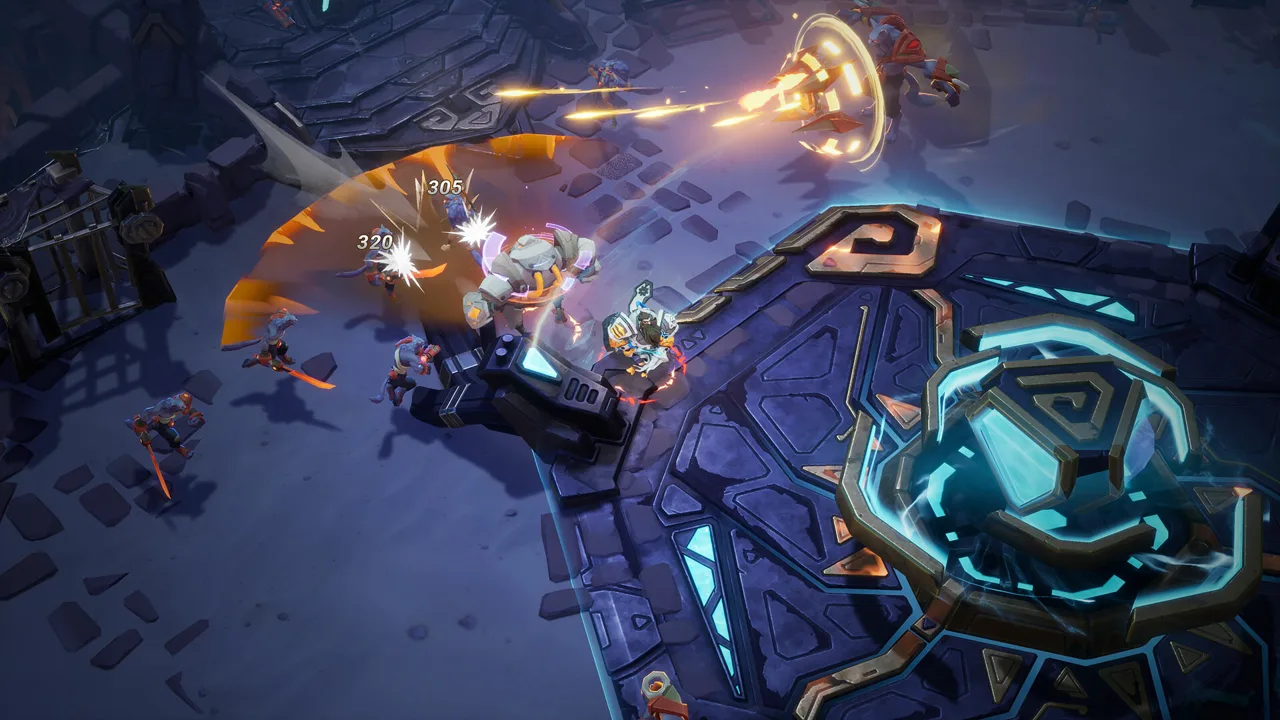 Image: Steam / XD
BlueStacks includes control and performance features, including high-FPS functionality. Choose settings around the experience your Mac can sustain rather than treating the highest available option as a required target.
Check movement and combat input
Review the emulator’s control configuration before committing to a build. Check movement, aiming where applicable, and access to the combat actions you use most.
Try the actions together. A control layout that feels comfortable while standing still can become awkward when you need to move and attack repeatedly.
Keep these checks focused:
- Make movement comfortable before adjusting secondary shortcuts.
- Place frequently used combat actions within easy reach.
- Check that emulator controls do not interfere with each other.
- Change one part of the layout at a time, then try it again.
These are setup checks, not a universal key-binding preset. Build the layout around the controls available in your emulator and the actions your character uses.
Prioritize consistent responsiveness
Check performance during combat rather than judging it only from menus. Watch whether movement and attacks remain responsive when enemies and effects fill the screen.
If performance feels uneven, close unnecessary applications and review the graphics options available in your game and emulator. Adjust one setting at a time so you can tell which change helps.
High-FPS functionality is an emulator feature, not a guaranteed result for every Mac. Choose a comfortable balance between visual detail and responsiveness for your machine.
BlueStacks also includes multi-instance tools. Keep a single game instance running while evaluating performance so additional instances do not complicate the comparison.
Match troubleshooting to the symptom
Separate installation problems from gameplay problems. If BlueStacks itself will not open, check emulator compatibility first. If Google Play access fails, resolve the store sign-in step before changing game settings.
If Torchlight: Infinite opens but combat feels sluggish, focus on running applications and graphics settings. This keeps your troubleshooting connected to the part of the setup that is actually causing trouble.
What to Play Once Your Mac Setup Is Ready
With Torchlight: Infinite Mac setup handled, you can focus on the game’s core loop: fighting through enemies, collecting equipment, and combining hero traits, talents, and skills into a build.
The Tartarus season launches Oct 16. It adds a prison-management mechanic, a new Youga Hero Trait, and Follower progression alongside changes to trading and other systems.
| Tartarus feature | What it adds |
|---|---|
| Seasonal prison mechanic | Capture escaped inmates and manage them through a 20-day sentence cycle |
| Prisoner interactions | Use the Mammoth, Lion, Wolf, and Colossal Rat hierarchy while developing prisoners |
| Riot encounter | Fight in the central prison complex at the end of the cycle for Warden’s Caches |
| The Ultimate One | A new Youga Hero Trait built around the Clockwork Core and three development paths |
| Followers | Recruit allies with Tartarus Skills and attached Support Skills |
| Trade House improvements | Condition filters and preset sharing |
Start with a combat style you want to use
Torchlight: Infinite supports melee attacks, ranged combat, and spellcasting, with hero traits and equipment shaping the resulting build.
Pick a direction before comparing every item that drops. If you want to play a spellcaster, examine how your chosen skills and equipment work together. If you prefer ranged attacks or close combat, apply the same focused comparison to those choices.
Keep the build manageable while getting comfortable with emulator controls. Change a skill or equipment piece, try the result, and then decide whether to keep it. Changing several things together makes it harder to understand what improved your character.
Learn the Tartarus prisoner hierarchy
Tartarus places you in the Warden’s role. Hunt escaped inmates in the Netherrealm, collect their Prisoner Nameplates, and manage the prison through its sentence cycle.
The prisoner hierarchy runs Mammoth over Lion, Lion over Wolf, and Wolf over Colossal Rat. Feeding stronger inmates through these interactions can produce Chromatic Prisoners. Torture Instruments and Prison Incidents add further decisions before the riot.
Review prisoner types before arranging interactions. Follow the hierarchy deliberately instead of choosing inmates only by appearance, and prepare for the riot that closes the cycle.
Explore Followers and trading tools
Letters of Introduction from the interrogation room bring Followers into the progression system. Their Tartarus Skills arrive with random Support Skills attached, and higher-ranked Followers can equip more skills.
Compare those combinations with the build you are developing. Look at what an ally contributes alongside your own attacks and skills before deciding where to invest your attention.
For equipment searches, use the Trade House’s condition filters to narrow results. Preset sharing adds another way to organize searches as your gear needs become more specific.
FAQ
Does Torchlight: Infinite have a native Mac version on Steam?
The Steam release supports Windows and does not support macOS. Installing the Steam application on a Mac does not make the Windows game client run natively.
How does Torchlight: Infinite Mac play work through BlueStacks?
BlueStacks provides an emulator route for the Android game. Install a compatible BlueStacks release, sign in to Google Play, search for Torchlight: Infinite, install it, and launch it from the emulator’s home screen.
What are the Mac emulator’s minimum requirements?
The baseline is macOS 11 Big Sur or later, at least 4 GB RAM, and 10 GB of free storage. Check your Mac’s processor compatibility with the specific BlueStacks release before installation.
What does the Tartarus season add?
Tartarus introduces escaped-inmate hunting, prison management, and a riot encounter that rewards Warden’s Caches. It also adds Youga’s The Ultimate One Hero Trait, Follower progression, and Trade House improvements.
Continue with
 Torchlight: Infinite Mobile Download and Season GuidePlay Torchlight: Infinite mobile on Android or iPhone. Explore official downloads, hero builds, trading, and the Tartarus season before your next loot run.
More in Platforms
Torchlight: Infinite Controller Support: PC Play Guide
Torchlight: Infinite controller support includes partial support on Steam. Learn what that means for PC play, controller expectations, and next season.

Torchlight: Infinite On Steam Deck: Settings & Fixes
Play Torchlight: Infinite on Steam Deck with practical controller tips, graphics settings, Proton fixes, and battery-saving advice for your next loot run.
Torchlight: Infinite PS5: Release Plans and How to Play
Explore Torchlight: Infinite PS5 release plans, current PC and mobile options, controller support, and what the Tartarus season brings to your loot hunt.
Join the community
Game links and player communities: